Configurations
Toolkit Directory Structure
Application Configurations
- Overview
- Input
- Primary/Secondary
- Tracker
- EMCustom
- EMPyCustom
- Overlay
- AI Meta
- Callback and Events
- Options
Stream Configurations
- Actions
- Continuous Recording
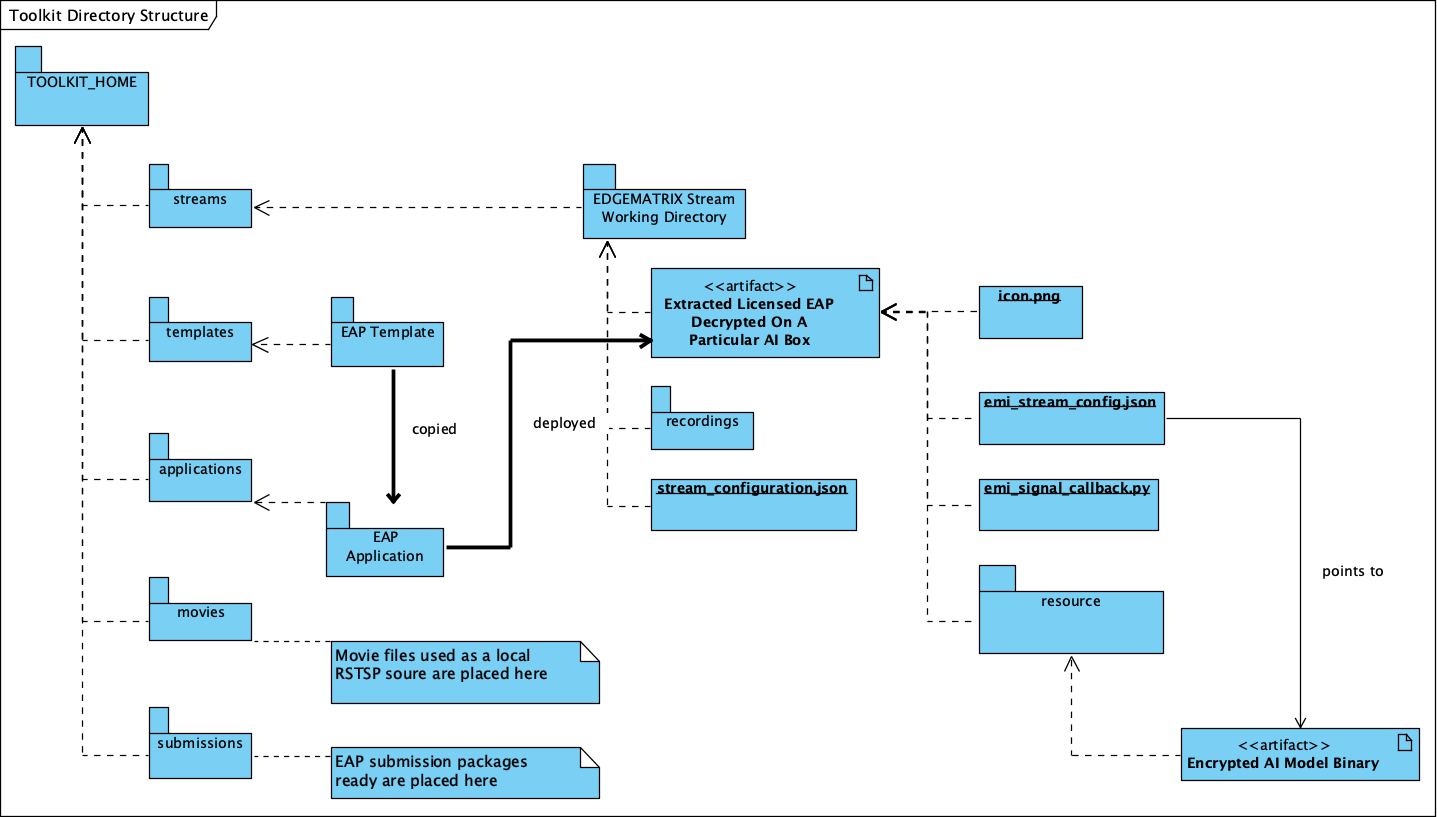
Toolkit Directory Structure
The directory structure of the EDGEMATRIX Stream Toolkit looks like this:
Application Configurations
Overview
This is a configuration about an overview of an EAP.
| Property | Meaning | Type |
|---|---|---|
| developer_name | The company name of an AI Model Developer | String |
| application_name | The name of an application. This has to be unique among all your applications. | String |
| application_version | The version name of your application. | String |
| application_description | The description of your application | String |
All the properties are mandatory.
Input
This is a configuration about an input of a pipeline.
The GStreamer element used for this is nvstreammux or dstransfermeta.
Available properties of nvstreammux are:
| Property | Meaning | Type | Range | Default |
|---|---|---|---|---|
| batch-size | Maximum number of buffers in a batch | Unsigned Integer | 0 - 1024 | 0 |
| batched-push-timeout | Timeout in microseconds to wait after the first buffer is available to push the batch even if the complete batch is not formed. Set to -1 to wait infinitely | Integer | -1 - 2147483647 | -1 |
| width | Width of each frame in output batched buffer. This property MUST be set. | Unsigned Integer | 0 - 4294967295 | 0 |
| height | Height of each frame in output batched buffer. This property MUST be set. | Unsigned Integer | 0 - 4294967295 | 0 |
| enable-padding | Maintain input aspect ratio when scaling by padding with black bands. | Boolean | true - false | false |
| gpu-id | Set GPU Device ID | Unsigned Integer | 0 - 4294967295 | 0 |
| live-source | Boolean property to inform muxer that sources are live. | Boolean | true - false | false |
| num-surfaces-per-frame | Max number of surfaces per frame | Unsigned Integer | 1 - 4 | 1 |
| nvbuf-memory-type | Type of NvBufSurface Memory to be allocated for output buffers | Enum(GstNvBufMemoryType) | (0) nvbuf-mem-default: memory allocated, specific to particular platform. (4) nvbuf-mem- surface-array: Allocate Surface Array memory, applicable for Jetson | 0 |
| buffer-pool-size | Maximum number of buffers in muxer’s internal pool | Unsigned Integer | 0 - 1024 | 4 |
Please note that an end user is allowed to configure their own ROI over their RTSP stream.
Alternatively, you can use dsmetatransfer.
This GStreamer element is a priprietary one by EDGEMATRIX, Inc.
Available properties of dstransfermeta are:
| Property | Meaning | Type | Range | Default |
|---|---|---|---|---|
| listen-to | Primary package to get buffers from | String | Null |
Primary/Secondary
This is a configuration about a primary inference of a pipeline.
The GStreamer element used for this is nvinfer.
Available properties are:
| Property | Meaning | Type | Range | Default |
|---|---|---|---|---|
| unique-id | Unique ID for the element. Can be used to identify output of the element | Unsigned Integer | 0 4294967295 | 1 |
| process-mode | Infer processing mode | Enum GstNvInferProcessModeType |
|
1 |
| config-file-path | Path to the configuration file for this instance of nvinfer | String | “” | |
| infer-on-gie-id | Infer on metadata generated by GIE with this unique ID. Set to -1 to infer on all metadata. | Integer | -1 2147483647 | -1 |
| infer-on-class-ids | Infer on objects with specified class ids Use string with values of class ids in ClassID to set the property. e.g. 0:2:3 | String | “” | |
| model-engine-file | Absolute path to the pre-generated serialized engine file for the model. If using encription this is (required) | String | “” | |
| batch-size | Maximum batch size for inference | Unsigned Integer | 1 1024 | 1 |
| interval | Specifies number of consecutive batches to be skipped for inference | Unsigned Integer | 0 2147483647 | 0 |
| gpu-id | Set GPU Device ID | Unsigned Integer | 0 4294967295 | 0 |
| raw-output-file-write | Write raw inference output to file | Boolean | true false | false |
| raw-output-generated-callback | Pointer to the raw output generated callback funtion (type gst_nvinfer_raw_output_generated_callback in ‘gstnvdsinfer.h’) | Pointer | ||
| raw-output-generated-userdata | Pointer to the userdata to be supplied with raw output generated callback | Pointer | ||
| output-tensor-meta | Attach inference tensor outputs as buffer metadata | Boolean | true false | false |
| decrypt | Whether to decrypt or not the incoming files | Boolean | true false | false |
| decryption-passphrase | Passphrase to decrypt the model | String | “” |
The mandatory properties are the following.
- process-mode == 1 (Primary), 2 (Secondary)
- config-file-path
Note that model-engine-file property is a mandatory property, but can not be used here
because the property of nvinfer as a GStreamer plugin needs to be an absolute path.
When you need to generate an engine file, it can be generated by launching a simple GStreamer command involving nvinfer. Please refer to the forum post How to generate an engine file? (How to debug an app at the DeepStream level?).
So, please make sure to define in a config file of nvinfer as indicated by config-file-path.
Also note that config-file-path is the path to the configuration file for this instance of nvinfer. This configuration file contains some fields that can only be configured from there and some fields that overlap with nvinfer element properties enumerated before. Whenever a property is configured in both places, the one configured on the pipeline will take precedence and the one in the config file will be ignored.
Meta Transfer Mode
This is a configuration about passing meta from one stream to others.
This GStreamer element allows a developer to apply a custom function to the buffer stream.
Available properties are:
| Property | Meaning | Type | Range | Default |
|---|---|---|---|---|
| listen-to | Primary package to get buffers from | String | null | |
| return-custom-overlay | Boolean that indicates if the secondary EdgeStream application should return the resulting custom overlay metadata to be displayed on the primary | Boolean | [0,1] | 0 |
The mandatory properties are the followings.
- listen-to
The listen-to property is matched by a meta-source-id in the primary package. If return-custom-overlay is set to 1(true) the secondary application in a double EAP will return the custom-overlay-meta to the primary pipeline’s aimeta and it will be displayed in both pipelines.
Note that return-custom-overlay is not available on the GUI.
Tracker
This is a configuration about a tracker of a pipeline.
The GStreamer used for this is nvtracker.
| Property | Meaning | Type | Range | Default |
|---|---|---|---|---|
| tracker-width | Frame width at which the tracker should operate, in pixels | Unsigned Integer | 0 - 4294967295 | 640 |
| tracker-height | Frame height at which the tracker should operate, in pixels | Unsigned Integer | 0 - 4294967295 | 368 |
| gpu-id | Set GPU Device ID | Unsigned Integer | 0 - 4294967295 | 0 |
| ll-config-file | Low-level library config file path | String | null | |
| ll-lib-file | Low-level library file path | String | null | |
| enable-batch-process | Enable batch processing across multiple streams? | Boolean | true - false | false |
The mandatory properties are the following.
- ll-config-file
- ll-lib-file
EMCustom
This is a configuration about a custom element of a pipeline.
This GStreamer element is a priprietary one by EDGEMATRIX, Inc.
Available properties are:
| Property | Meaning | Type | Range | Default |
|---|---|---|---|---|
| silent | silent | Boolean | true - false | true |
| last-meta | last-meta | String | null | |
| process-interval | Interval (in buffers) to process | Integer | 1 - 2147483647 | 1 |
| custom-lib | Custom library where the process_ip or process functions will be found | String | null | |
| in-place | Process buffers in place or not | Boolean | true - false | true |
| format | Input format for processing | String | RGBA or I420 | RGBA |
The mandatory properties are the followings.
- custom-lib
EMPyCustom
This is a configuration about a custom element in Python of a pipeline.
This GStreamer element is a priprietary one by EDGEMATRIX, Inc.
Available properties are:
| Property | Meaning | Type | Range | Default |
|---|---|---|---|---|
| silent | silent | Boolean | true - false | true |
| last-meta | last-meta | String | null | |
| process-interval | Interval (in buffers) to process | Integer | 1 - 2147483647 | 1 |
| custom-lib | Custom python library containing the implemented virtual methods | String | null | |
| in-place | Process buffers in place or not | Boolean | true - false | true |
| format | Input format for processing | String | RGBA, I420, NV12 | RGBA |
| memory | Type of memory of the input buffer | String | CPU or NVMM | CPU |
The mandatory properties are the followings.
- custom-lib
Overlay
This is a configuration about an overlay of a pipeline.
The GStreamer used for this is nvdsosd <https://docs.nvidia.com/metropolis/deepstream/plugin-manual/index.html#page/DeepStream_Plugin_Manual%2Fdeepstream_plugin_details.02.06.html>.
| Property | Meaning | Type | Range | Default |
|---|---|---|---|---|
| silent | Produce verbose output ? | Boolean | true - false | false |
| display-clock | Whether to display clock | Boolean | true - false | false |
| clock-font | Clock Font to be set | String | null | |
| clock-font-size | font size of the clock | Unsigned Integer. | 0 - 60 | 0 |
| x-clock-offset | x-clock-offset | Unsigned Integer. | 0 - 4294967295 | 0 |
| y-clock-offset | y-clock-offset | Unsigned Integer. | 0 - 4294967295 | 0 |
| clock-color | clock-color | Unsigned Integer. | 0 - 4294967295 | 0 |
| process-mode | Rect and text draw process mode | Enum “GstNvDsOsdMode” |
|
2, “HW_MODE” |
| gpu-id | Set GPU Device ID | Unsigned Integer. | 0 - 4294967295 | 0 |
AI Meta
This is a configuration about a signaling of inference result of a pipeline.
This GStreamer element is a priprietary one by EDGEMATRIX, Inc.
Available properties are:
| Property | Meaning | Type | Range | Default |
|---|---|---|---|---|
| silent | silent | Boolean | true - false | true |
| last-meta | last-meta | String | null | |
| signal-aimetas | Send a signal when the json containing the meta is ready for read | Boolean | true - false | true |
| signal-interval | Interval (in buffers) between aimeta signal emissions | Integer | 1 - 2147483647 | 1 |
The signal-interval property is the interval between signals (in buffers). Change this property to reduce the frequency of emitted signals in non-critical applications.
Signal
The structure of a signal is defined as follows by example.
{# Holds batch information containing frames from different sources.
  "frame": [ # List of frame meta in the current batch
    {
      "frame_num": 0, # Current frame number of the source
      "buf_pts": 0, # PTS of the frame
      "timestamp": "2019-12-30T08:24:36.748-0600", # System timestamp when the buffer was received by the aimeta element
      "object": [ #L ist of object meta in the current frame
        {
          "class_id": 0, # Index of the object class infered by the primary detector/classifier
          "object_id": 65, # Unique ID for tracking the object. '-1' indicates the object has not been tracked
          "confidence": 0,# Confidence value of the object, set by inference component
          "rect_params": { # Structure containing the positional parameters of the object in the frame
            "left": 1722, # Holds left coordinate of the box in pixels
            "top": 601, # Holds top coordinate of the box in pixels
            "width": 192, # Holds width of the box in pixels
            "height": 166 # Holds height of the box in pixels
          },
          "text_params": { # Holds the text parameters of the overlay text
            "display_text": "Car 65 audi " # Holds the text to be overlayed
          },
          "classifier": [ # List of classifier meta for the current object
            {
              "num_labels": 1, # Number of output labels of the classifier
              "unique_component_id": 2, # Unique component id of the element that attached this metadata
              "label_info": [ # List of label meta of the current classifier
                {
                  "num_classes": 0, # Number of classes of the given label
                  "result_label": "audi", # String describing the label of the classified object
                  "result_class_id": 1, # Class id of the best result
                  "label_id": 0, # Label id in case of multi label classifier
                  "result_prob": 0.708984375 # Probability of best result
                }
              ]
            }
          ]
        }
      ]
    }
  ]
}
If your pipeline involves an EMCustom element, it would look liket this. An output from an EMCustom element is added to each object.
"frame": [
  {
    "frame_num": 0,
    "buf_pts": 0,
    "ntp_timestamp": 0,
    "object": [
      {
        "class_id": 0,
        "object_id": -1,
        "confidence": 0,
        "rect_params": {
          "left": 768,
          "top": 586,
          "width": 43,
          "height": 31
        },
        "text_params": {
          "display_text": "Car"
        },
        "classifier": [],
        "emcustom": "Arbitrary JSON for object 1"
      },
      {
        "class_id": 0,
        "object_id": -1,
        "confidence": 0,
        "rect_params": {
          "left": 843,
          "top": 598,
          "width": 48,
          "height": 46
        },
        "text_params": {
          "display_text": "Car"
        },
        "classifier": [],
        "emcustom": "Arbitrary JSON for object 2"
      },
      {
        "class_id": 2,
        "object_id": -1,
        "confidence": 0,
        "rect_params": {
          "left": 883,
          "top": 610,
          "width": 147,
          "height": 111
        },
        "text_params": {
          "display_text": "Person"
        },
        "classifier": [],
        "emcustom": "Arbitrary JSON for object 3"
      }
    ]
  }
]
Callback and Events
Definitions
This is a configuration about the callback function name and event definitions.
- signal_callback_function_name: The name of the callback function to call if the event conditions are satisfied.
- event_item_keys: The description of the type and format allowed for each item used in the action rules of the stream-configuration JSON file. The event item keys are composed by the following properties:
- key: The name of the item (obligatory).
- type: The type of the item (obligatory). Supported types:
string- options: The possible values the item could take (optional). This property is valid for
stringtype only.
- options: The possible values the item could take (optional). This property is valid for
number- min_value: The minimum float value the item could take (optional). This property is valid for
numbertype only. - max_value: The maximum float value the item could take (optional). This property is valid for
numbertype only.
- min_value: The minimum float value the item could take (optional). This property is valid for
As an exception, you can use this event to raise a fatal error from an app. By using a class among Built-in Exceptions as a key, and an error message as a value, you can notify an EDGEMATRIX Stream of any malfunctions detected by an app. And it will be eventually notified an end user of such a fatal error.
events = []
...
events.append({ValueError: 'A sensor reading is too low. Please check if the sensor is working fine.'})
return events
Callback
The callback function defined as the callback function name must exist in a python file “called emi_signal_callback.py”.
This is a python file in which source code represents a signal callback function to be activated if the conditions defined in the stream-configuration file are satisfied.
The signal callback file must at minimum comply with the following conditions:
- The file must be named emi_signal_callback.py
- Must define a method with the name defined in the emi_stream_config.json signal_callback_function_name field
- The method must return two objects
- a dictionary array where each element of the array contains at least the fields defined in the emi_stream_config.json event_item_keys field. This array can also be empty.
- a debug string that can be used for debugging. Nothing will be logged if an empty string is retruned.
- The python file will be compiled and executed in a sandbox environment based on Restricted Python. The allowed and restricted Python functionalities are documented below.
Allowed:
Secure exceptions are allowed. But the signal callback handler will fail if an exception is raised in the callback function. Here is a list of the allowed exceptions:
    ArithmeticError
    AssertionError
    AttributeError
    BaseException
    BufferError
    BytesWarning
    DeprecationWarning
    EnvironmentError
    EOFError
    Exception
    FloatingPointError
    FutureWarning
    GeneratorExit
    ImportError
    ImportWarning
    IndentationError
    IndexError
    IOError
    KeyboardInterrupt
    KeyError
    LookupError
    MemoryError
    NameError
    NotImplementedError
    OSError
    OverflowError
    PendingDeprecationWarning
    ReferenceError
    RuntimeError
    RuntimeWarning
    StopIteration
    SyntaxError
    SyntaxWarning
    SystemError
    SystemExit
    TabError
    TypeError
    UnboundLocalError
    UnicodeError
    UnicodeWarning
    UserWarning
    ValueError
    Warning
    ZeroDivisionError
For loops are allowed when iterating over lists, tuples, dict or strings.
Flow control statements are allowed:, break, continue, pass
Using format() on a str is not safe but it is allowed
The following built-in functions are allowed:
    abs()
    callable()
    chr()
    divmod()
    hash()
    hex()
    id()
    isinstance()
    issubclass()
    len()
    oct()
    ord()
    pow()
    range()
    repr()
    round()
    zip()
Module imports are potentially dangerous but the following are allowed:
    Complete Modules:
        datetime
    Submodules:
        pointPolygonTest from cv2
        array, sin, cos, tan , arctan2, deg2rad, rad2deg, and pi from numpy
        time and _strptime from datetime
New classes, parameters, and methods are allowed
The following data types are allowed:
    bool
    complex
    float
    int
    slice
    str
    tuple
Only in-place operators are restricted. This is the list of allowed operators:
    +
    -
    *
    /
    %
    **
    //
    &
    |
    ^
    ~
    <<
    >>
    ==
    !=
    >
    <
    >=
    <=
    and
    or
    not
    is
    is not
    in
    not in
    =
The following builtin values are allowed:
    False
    None
    True
While loops are allowed
Restricted:
Attribute manipulation with builtin functions is restricted:
    setattr()
    getattr()
    delattr()
    hasattr()
Attribute names that start with "_" are restricted
compile() is restricted because it can be used to produce new unrestricted code
sequence unpacking is restricted
dir() is restricted because it returns all properties and methods of an object
Direct IO is restricted:
    execfile()
    file()
    input()
    open()
    raw_input()
eval() calls are restricted
The following exceptions are restricted:
    BlockingIOError
    BrokenPipeError
    ChildProcessError
    ConnectionAbortedError
    ConnectionError
    ConnectionRefusedError
    ConnectionResetError
    FileExistsError
    FileNotFoundError
    InterruptedError
    IsADirectoryError
    ModuleNotFoundError
    NotADirectoryError
    PermissionError
    ProcessLookupError
    RecursionError
    ResourceWarning
    StandardError
    StopAsyncIteration
    TimeoutError
    UnicodeDecodeError
    UnicodeEncodeError
    UnicodeTranslateError
    WindowsError
exec() calls are restricted because it can be used to execute unrestricted code
The following built-in functions are restricted:
    all()
    any()
    apply()
    bin()
    buffer()
    classmethod()
    cmp()
    coerce()
    enumerate()
    filter()
    intern()
    iter()
    map()
    max()
    memoryview()
    min()
    sorted()
    staticmethod()
    sum()
    super()
    type()
    unichr()
Global built-ins access is restricted
All imports are restricted except the ones mentioned before
Namespace access is restricted:
    globals()
    locals()
    vars()
In-place operators are restricted:
    +=
    -=
    *=
    /=
    %=
    //=
    **=
    &=
    |=
    ^=
    >>=
    <<=
Prints are restricted. However, you can print debug strings by returning a non-empty string on the signal callback ``debug_string``.
Strings that describe Python are restricted, there's no point to including these:
    copyright()
    credits()
    exit()
    help()
    license()
    quit()
Some data types alias are restricted:
    bytearray
    dict
    file
    list
    long
    unicode
    xrange
    basestring
    object
    property
Custom Overlay
This feature allows an AI model developer to send data in a callback to draw an overlay. This is achieved via NvDsDisplayMeta, hence its subject to its functionalities. Such metadata is added by the signal_callback function, appended to the last-meta structure to preserve backwards compatibility.
For each supported overlay object, the properties and their type are listed bellow:
Text overlay:
- display_text : string
- x_offset : unsigned int
- y_offset : unsigned int
- font_params : dict (NvOSD_FontParams)
- set_bg_clr : int
- text_bg_clr : dict NvOSD_ColorParams
Rect overlay:
- left : unsigned int
- top : unsigned int
- width : unsigned int
- height : unsigned int
- border_width : unsigned int
- border_color : dict (NvOSD_ColorParams)
- has_bg_color : unsigned int
- bg_color : dict (NvOSD_ColorParams)
- has_color_info : int
- color_id : int
Line overlay:
- x1 : int
- y1 : int
- x2 : int
- y2 : int
- line_width : unsigned int
- line_color : dict (NvOSD_ColorParams)
For convenience, here are the DeepStream structs referenced above:
NdOSD_FontParams
- font_name : string DO NOT USE, LEADS TO MEMORY LEAK
- font_size : unsigned int
- font_color : NvOSD_ColorParams
NvOSD_ColorParams
- red : double
- green : double
- blue : double
- alpha : double
In order to support adding multiple objects on a single meta, the following structure was chosen:
- overlay_item is the dictionary ultimately appended to last-meta by the callback.
- It contains two keys, text_params and rect_params, the two objects currently supported.
- Each of these objects is an array.
- Every new objects is appended to its respective array in the form of a dictionary.
So, overlay_item would be formed as follows:
{
   "text_params" :  [
     {  <object1> },
     {  <object2> },
     ...
   ],
   "rect_params" : [
     {  <rect1> },
     {  <rect2> },
     ...
   ]
}
Finally, in order to facilitate the settings of properties formed by dictionaries, they were separated so that they all belong on the same level, as follows:
 'text_params': [
   'display_text',
   'x_offset',
   'y_offset',
   # 'font_name', DO NOT USE
   'font_size',
   'font_color_red',
   'font_color_green',
   'font_color_blue',
   'font_color_alpha',
   'set_bg_clr',
   'bg_color_red',
   'bg_color_green',
   'bg_color_blue',
   'bg_color_alpha'
],
'rect_params': [
   'left',
   'top',
   'width',
   'height',
   'border_width',
   'border_color_red',
   'border_color_green',
   'border_color_blue',
   'border_color_alpha',
   'has_bg_color',
   'bg_color_red',
   'bg_color_green',
   'bg_color_blue',
   'bg_color_alpha',
   'has_color_info',
   'color_id'
]
Consider the following example on appending the overlay-meta to the last-meta:
def add_overlay(stats):
  overlay_item = {}
  text_params = []
  label1 = {}
  label1['display_text'] = stats
  label1['x_offset'] = 10
  label1['y_offset'] = 20
  # label1['font_name'] =  "Serif" DO NOT USE
  label1['font_size'] = 10
  label1['font_color_green'] = 1
  label1['font_color_red'] = 1
  label1['font_color_blue'] = 1
  label1['font_color_alpha'] = 1
  label1['set_bg_clr'] = 1
  label1['bg_color_red'] = 1
  label1['bg_color_blue'] = 0
  label1['bg_color_green'] = 0
  label1['bg_color_alpha'] = 0
  text_params.append(label1)
  overlay_item['text_params'] = text_params
Also, consider the following example on appending the overlay-meta including the lines to the last-meta in order to draw polygons:
def add_overlay(polygons):
    overlay_item = {}
    line_params = []
    if len(polygons) > 0:
        for polygon in polygons:
            points = polygon["value"]
            add_overlay_flag = polygon["add_overlay"]
            if add_overlay_flag:
                # Draw the polygon on the frame with the following params:
                n_points = len(points)
                for index in range(n_points):
                    line = {}
                    point_a = points[index]
                    if (index == (n_points - 1)):
                        point_b = points[0]
                    else:
                        point_b = points[index + 1]
                    line['x1'] = point_a[0]
                    line['y1'] = point_a[1]
                    line['x2'] = point_b[0]
                    line['y2'] = point_b[1]
                    line['line_color_red'] = 0
                    line['line_color_green'] = 1
                    line['line_color_blue'] = 0
                    line['line_color_alpha'] = 1
                    line['line_width'] = 10
                    line_params.append(line)
        overlay_item['line_params'] = line_params
    return overlay_item
Please note that there are some restrictions as described below.
- Max text_params items: 16
- Max rect_params items: 16
- Max line_params items: 16
- Max display_text length: 512 chars
Options
An end user to override any configuration value allowed by the AI model developer on a specific application package. Such a configuration override is achieved by the end user through a set of valid key/value pairs in a stream configuration file. Currently, there are two override modes supported:
- GStreamer: allows an end user to modify any allowed property on a GStreamer element among primary, tracker, secondary, overlay, aimeta, dsmetatransfer, emcustom, and empycustom.
- Callback: callback options are parsed and added to a list, which is then attached to the metadata sent to a callback, by appending to its dictonary an options entry, which will hold a list of these dictionary elements with the current values so that an AI model developer can access them.
In order to enable such feature, the AI model developer must define each option by defining the following elements:
- key: depending on the option_type, this contains the key element and property name for a GStreamer element, or the variable name for the callback option.
- option_type: currently supported: gstreamer, callback.
Additionally, for callback type options you can define the value type:
- value_type: currently supported: string, number, list, and object.
And depending on a type, a list of possible values for string, a range for number can be defined.
- a list of possible values for string
"pipeline_configuration": {
 ...
},
"options": [
  {
    "key": "new_var_str",
    "option_type": "callback",
    "value_type": "string",
    "value_list": ["foo", "bar"]
  },
  ...
]
In this case, only value either of “foo” or “bar” is allowed for this option.
- a range of values for number
"pipeline_configuration": {
 ...
},
"options": [
  {
    "key": "new_var_num",
    "option_type": "callback",
    "value_type": "number",
    "min-value": 20,
    "max-value": 30
  },
  ...
]
In this case, any number larger than or equal to 20 and smaller than or equal to 30 is allowed.
Next, consider the following example for a GStreamer option override:
Property override enable on the app_config
 "pipeline_configuration": {
  ...
 },
 "options": [
   {
     "key": {
       "element": "aimeta",
       "property": "signal-interval"
     },
     "option_type": "gstreamer",
     "value_type": "number"
   },
  ...
]
Property override on the stream_config
"action_rules": [
 ...
]
"options": [
  {
    "key": {
      "element": "aimeta",
      "property": "signal-interval"
    },
    "value": 1
  }
]
Consider the following example for a callback option override:
Property override enable on the app_config
"pipeline_configuration": {
 ...
},
"options": [
  {
    "key": "new_var_num",
    "option_type": "callback",
    "value_type": "number"
  },
  ...
]
Property override on the stream_config
"action_rules": [
 ...
]
"options": [
  {
    "key": "new_var_num",
    "value": 1
  },
  ...
]
Device Console Integration
The Device Console will automagically find available lines or polygons in options, then let an end user to draw such an object on a screen. Such a configuration will be saved in a stream config, then which will be accessible to your app.
In order for the Device Console to find such lines or polygons, please make sure to add a prefix, “line” for lines, and “polygon” for polygons, to keys.
Stream Configurations
Actions
An action is defined in a stream config and executed when an event matchs a user defined action rule.
Please note that this will be configured on the Device Console.
The following actions are available on the EDGEMATRIX Service.
- Record Action
- Upload (to Amazon Kinesis Firehorse) Action
- LINE Action
- HTTPS Action
- SNMP Action
- Email Action
- Play Action
- ImageFreeze Action
- Udp Action
- Relay Action
- Vacan Action
Record Action
The EDGEMATRIX Stream application implements the video recording module which records videos for each incoming event, this module is configured according to established actions into the stream configuration file.
The actions determine the video duration for:
Pre-recording: recorded video before triggering an event. Post-recording: recorded video after triggering an event.
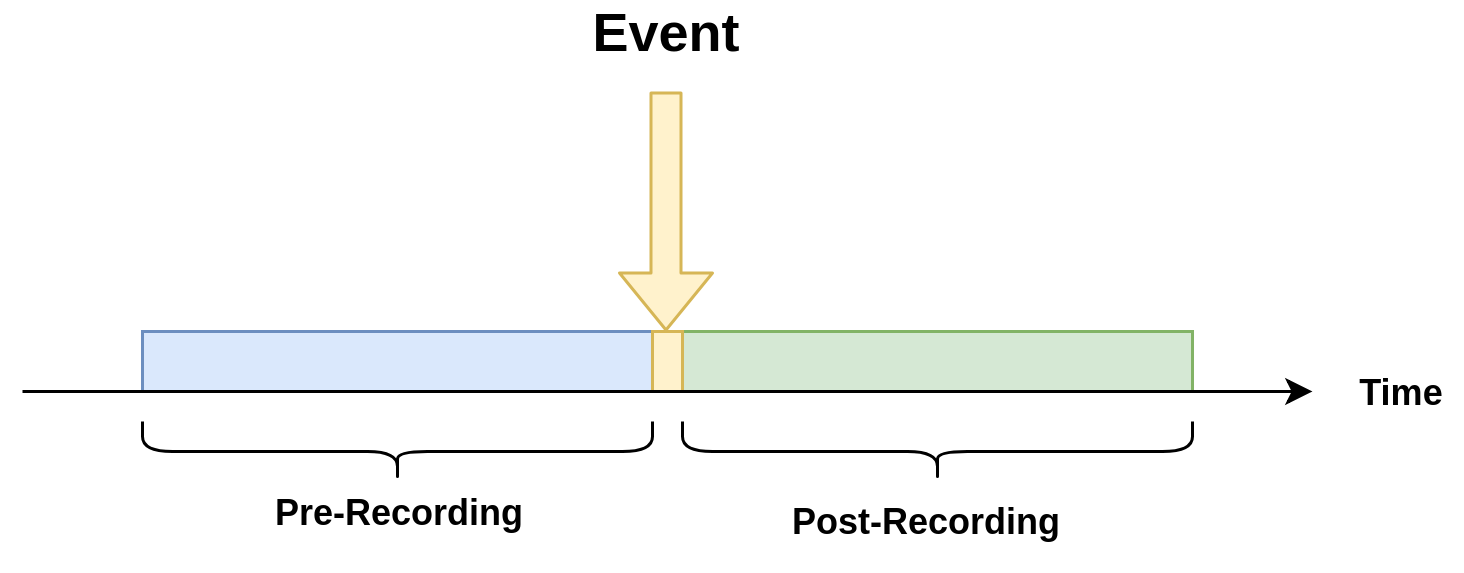
The videos for both recording processes will have the same duration.
Record action
This action establishes the duration of videos for pre-recording and post-recording equivalently. It must define as integer value.
"action":{
    "action_name": "record",
    "duration_in_seconds": 15,
    "max_duration_in_seconds": 30
}
Where:
- duration_in_seconds: indicates the desired duration in seconds of the recording files.
- max_duration_in_seconds: when a series of matching events keep occurring, the length of a recording could be greater than duration_in_seconds. The max_duration_in_seconds parameter limits the length of the recording files when such a series of matching events occurs.
Important:
- The duration_in_seconds parameter is mandatory, while the max_duration_in_seconds is optional. The default value of max_duration_in_seconds is equal to 60 seconds if not specified.
- The max_duration_in_seconds parameter must greater than duration_in_seconds, which must be positive.
Video prolongation for post-recording
This recording module performs a video prolongation in post-recording for incoming events during the recording process. The video prolongation depends on the record time, defined in actions, and the time for each incoming event. The next figure shows how the video prolongation works.

- Tr = Record time
- T0 = Initial post-record by first event
- T1 = Arrival time for second event
- T2 = Arrival time for third event
- Tr - T1 = video prolongation by second event
- Tr - T2 = video prolongation by third event
Format name for recorded video:
stream_id_%ID_%Y-%m-%dT%H:%M:%S%z.mp4
- ID = Identifier
- Y = year
- m = month
- d = day
- H = hour
- M = minute
- S = seconds
- z = numeric time zone
Upload (to Amazon Kinesis Firehorse) Action
This is one of delegate actions executed by a Device Agent.
It will upload an event to a user defined location of the Amazon Kinesis Firehorse.
Here’s the format of such a configuration.
"action": {
  "action_name": "upload",
  "deliveryStreamName": "pedestrianStream",
  "accessKey": "",
  "secretKey": "",
  "region": ""
}
LINE Action
This is one of delegate actions executed by a Device Agent.
It will send a message and/or a stamp to a specified LINE talk room.
Here’s the format of such a configuration.
"action": {
    "action_name": "line",
    "token_id": "",
    "message": "",
    "stickerId": 0,
    "stickerPackageId": 0,
    "interval": 0 (no interval) or larger
}
Please check the Notification section of the LINE Notify API Document .
HTTPS Action
This is one of delegate actions executed by a Device Agent.
It will make a post request with a basic authentication to a user defined location of a HTTPS server. The body content is a json event.
Here’s the format of such a configuration.
"action": {
  "action_name": "https",
  "url": "https://YOUR_HTTPS_SERVER/path",
  "user": "",
  "password": "",
  "user_agent": "OPTIONAL_USER_DEFINED_USER_AGENT",
  "interval": 0 (no interval) or larger
}
SNMP Action
This is one of delegate actions executed by a Device Agent.
It will send a SNMP Trap to a user defined SNMP device.
Here’s the format of such a configuration.
"action": {
  "action_name": "snmp",
  "oid": "1.3.6.1.4.1.55412.1",
  "ipaddress": "IPADDRESS_OF_YOUR_SNMP_DEVICE",
  "port": 162,
  "var_bind_key": "VAR_BIND_KEY",
  "var_bind_value": VAR_BIND_VALUE,
  "community": "public",
  "interval": 0 (no interval) or larger
}
One typical example is to send signals and sounds.
Email Action
This is one of delegate actions executed by a Device Agent.
It will send an email as defined.
Here’s the format of such a configuration.
"action": {
  "action_name": "email",
  "host": "SMTP_SERVER_ADDRESS",
  "port": "SMTP_PORT",
  "sender": "SENDER_EMAIL_ADDRESS",
  "password": "PASSWORD",
  "recipients": ["RECIPIENT_1", "RECEPIENT_2", ...],
  "subject": "SUBJECT_TEXT",
  "text": "BODY_TEXT",
  "add_direct_link": 1 (add) or 0
  "interval": 0 (no interval) or larger
}
Play Action
This is one of delegate actions executed by a Device Agent.
It will show an arbitrary contents configured by a uri parameter on a display. This is effective only when a kiosk mode is enabled.
"action": {
  "action_name": "play",
  "uri": "RTSP_ADDRESS"
}
ImageFreeze Action
This is one of delegate actions executed by a Device Agent.
It will show an arbitrary image configured by a uri parameter on a display. This is effective only when a kiosk mode is enabled.
"action": {
  "action_name": "imagefreeze",
  "uri": "IMAGE_ADDRESS"
}
UDP Action
This is one of delegate actions executed by a Device Agent.
This will send an arbitrary user data to a server configured by address and port.
"action": {
  "action_name": "udp",
  "address": "UDP_ADDRESS",
  "port": port_number,
  "userdata": "USERDATA_IN_STRING"
}
Relay Action
This is one of delegate actions executed by a Device Agent.
This is a special action for the Security/River monitoring packages that works with a supported CDC-ACM device.
"action": {
  "action_name": "relay",
  "acm_id": 0 or any other device number,
  "ch_name": "ONE_OF_PREDEFINED_CHANNEL_NAME_BY_DEVICE",
  "relay_status": 0 (OFF) or 1 (ON),
  "auto_flip_in_seconds": 0 (DISABLED) or a number of seconds to flip the status
}
VACAN Action
This is one of delegate actions executed by a Device Agent.
This is a special action used for the Crowdness Notification Package integrated with the VACAN (R) serivice.
"action": {
  "action_name": "vacan",
  "url": "VACAN_SERVICE_URL",
  "key": "UNIQUE_KEY_FOR_THE_DEVICE",
  "timestamp_key": "timestamp",
  "count_key": "count"
}
Continuous Recording
The stream configuration file contains an object called continuous_recording which is optional parameter and represents Continuous recording by the values of the following properties:
- duration_in_minutes Indicates the duration for each video recording in minutes.
- max_files Maximum video records for each EdgeStream session.
- bitrate Encoding bitrates for the video record like 1M, 1000000, 5m
- Example:
{
  "continuous_recording": {
    "duration_in_minutes": 1,
    "max_files": 1440,
    "bitrate": "1m"
  },
}