Double EAPs
Description
The Double EAPs mean two apps work together by one producing primary inference metadata like coordinates of objects, while another simply receives such metadata and combines it with its own input stream to process further in its downstream.
There are two major use cases:
- To add a Secondary only EAP
- To use two cameras (RTSP streams)
In order to support these two use cases, two new GStreamer element were developed and added to the EDGEMATRIX Stream v1.7.2.
One is dsmetatransfer that transfer inference results and another is emcustom that allows to execute your own library.
1. To add a Secondary only EAP
For example, you have a major app that counts vehicles by its make. This could satisfy almost all the needs of your users in the first place.
Then, an app successfully would keep producing results, and your customer would be likely adding new features to the existing app.
Let’s say, not only counting by make, but also by color. Or most likely, a license plate recognition.
In each case, you will not need to customize your existing app, but simply add a Secondary only app.
So, this feature aims to allow you to sell an app as an option.
The EDGEMATRIX Stream can share the same RTSP resource and the primary inference results, while allowing each app to work as an individual app.
2 To use two cameras (RTSP streams)
This is an emerging use case where you want to use two different types of cameras like a visible light camera and a thermal camera for a complex analysis.
In such a case, two cameras play different roles. But one will need to identify an object in a scene, then pass such information to another for further analysis.
Examples
- To add a Secondary only EAP
- (parent) EMI Vehicle IOU Counter By Make 720p
- (child) EMI Vehicle DCF MetaTransfer
- To use two cameras (RTSP streams)
- (parent) EMI Vehicle IOU Counter By Make 720p
- (child) EMI Vehicle DCF EMCustom
Preparation
As a preparation, all the resources have to be generated with a prepare_resource.sh script in each resource folder of templates.
EMI Vehicle IOU Counter By Make 720p
$ cd /mnt/nvme/toolkit_home
$ cd templates/EMI\ Vehicle\ IOU\ Counter\ By\ Make\ 720p/resource/
$ ./prepare_resource.sh
$ cd ../../../
EMI Vehicle DCF MetaTransfer
$ cd templates/EMI\ Vehicle\ DCF\ MetaTransfer/resource/
$ ./prepare_resource.sh
EMI Vehicle DCF EMCustom
$ cd templates/EMI\ Vehicle\ DCF\ EMCustom/resource/
$ ./prepare_resource.sh
Create Apps
Launch a toolkit, then create apps for each template prepared above.
Then, you will have three apps as follows.
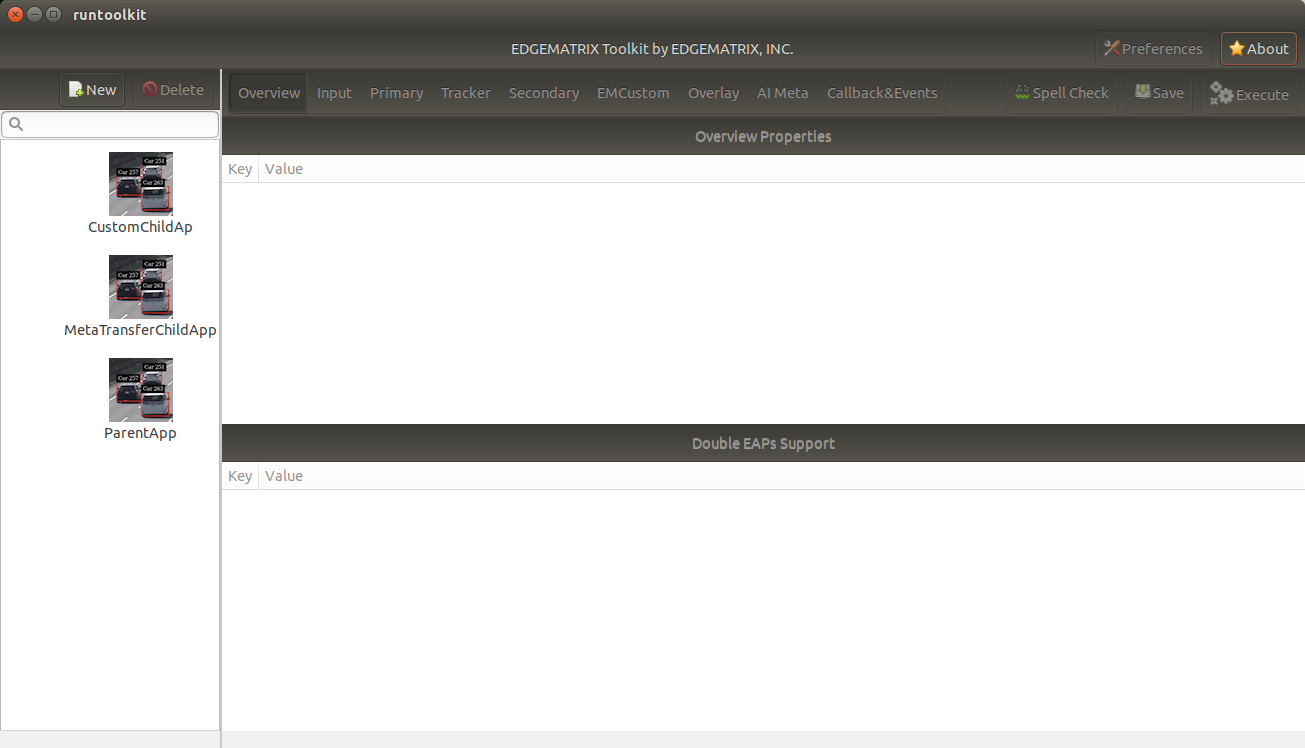
ParentApp
By selecting the ParentApp, you can find it is the same as the EMI Vehicle IOU Counter By Make as the name suggests except for the following two configurations.
720p instead of 1080p
meta-source-id for the Double EAPs support (referenced by a child app, see below)
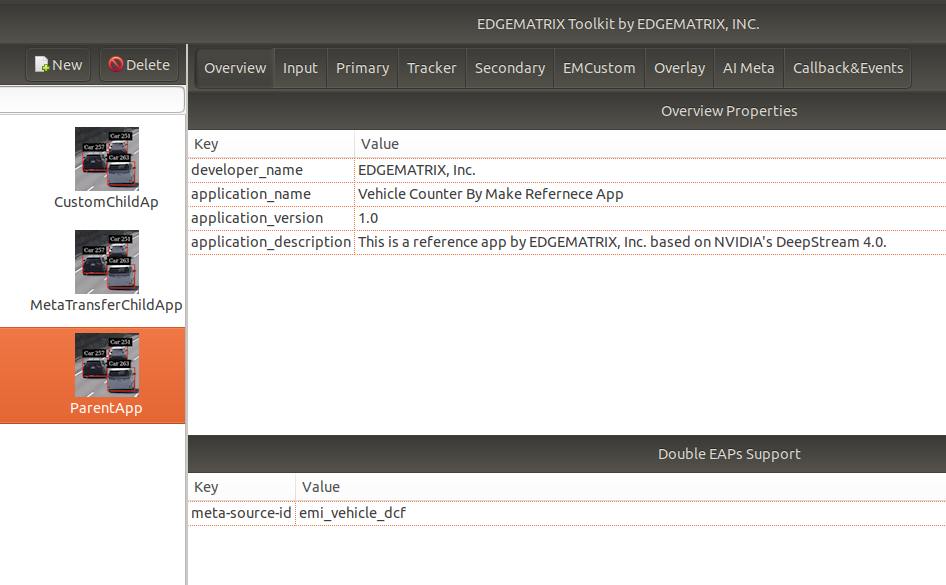
And this app works exactly the same way as the EMI Vehicle IOU Counter By Make.
1. To add a Secondary only EAP
At first, please setup the ParentApp as shown below. The stream config is from the vehicle stream. Note that the Show Debug Window is not checked.
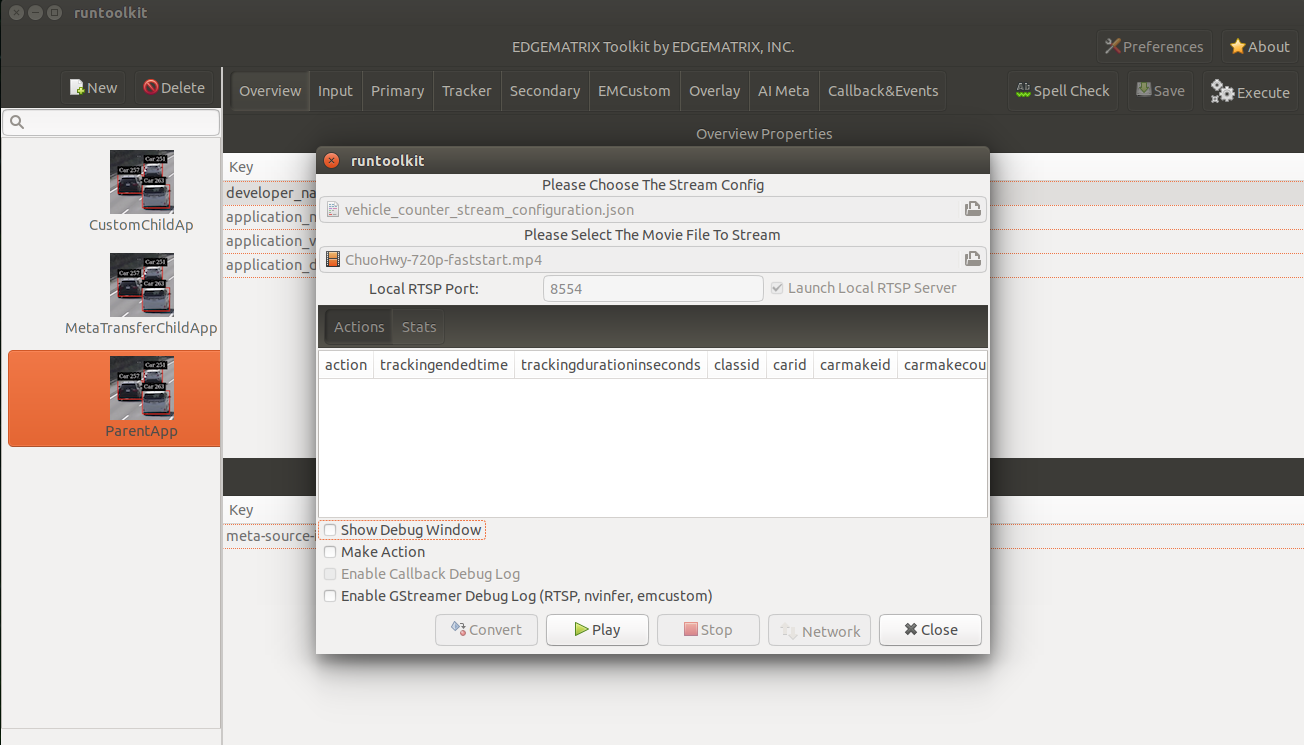
Then, launch another toolkit from another shell. Then select the MetaTransferChildApp and go to the Primary tab. You will find a new GUI that enables to receive inference results from a parent app instead of its own primary inference.
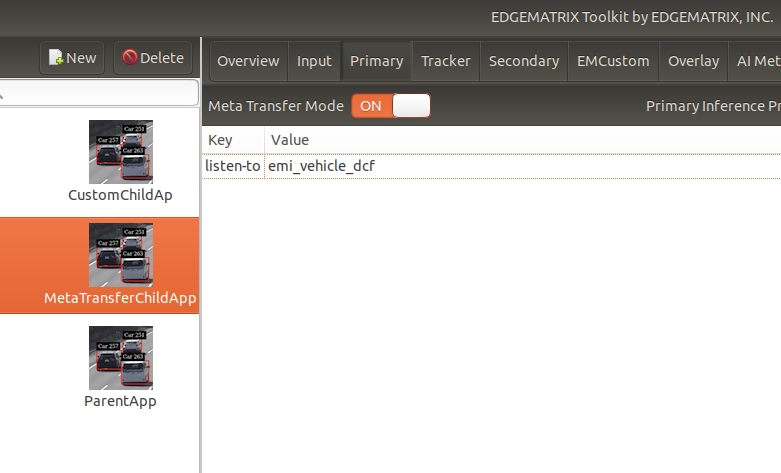
Then, setup the MetaTransferChildApp as shown below. The stream config is from the doubleeap_emcustom stream. Note that the Launch Local RTSP Server is not checked because it will use the same RTSP source as the one of the ParentApp.
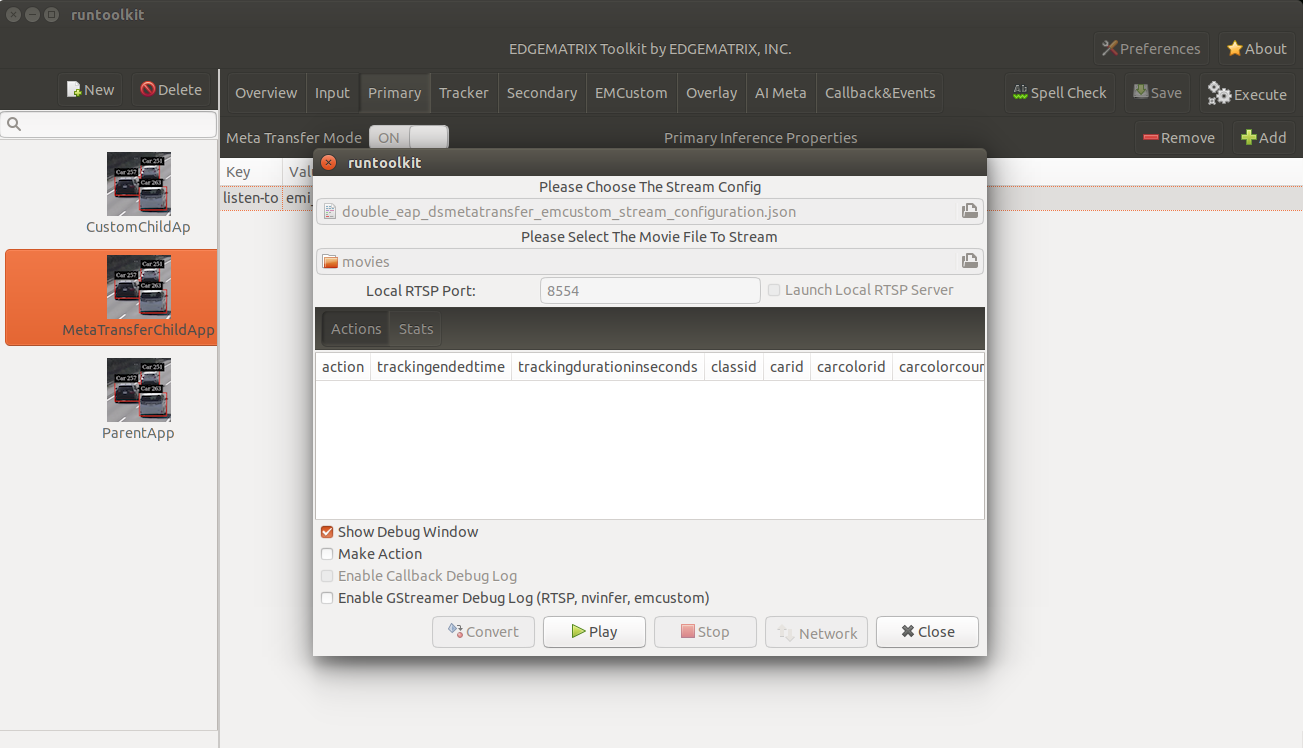
Now, it is time to start the ParentApp first. Then, after pressing the Start button, start the MetaTransferChildApp.
You will see a desktop like this.
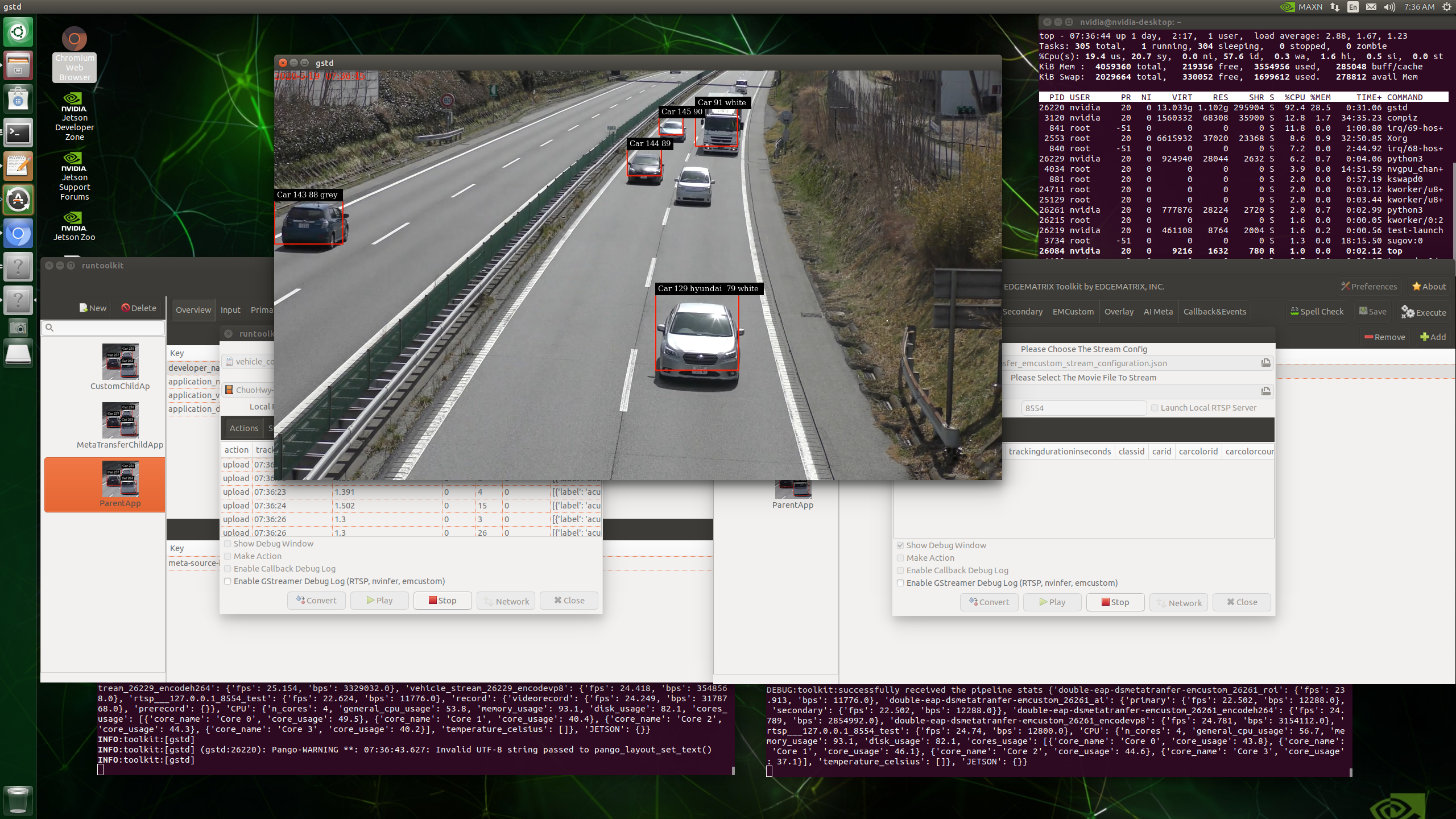
Those detection results come from the parent app, and with which a secondary does a classification.
2. To use two cameras (RTSP streams)
At first, please setup the ParentApp in the same way as 1 above. Then, your first toolkit looks like this.
Then, launch another toolkit from another shell. Then select the CustomChildAPp and go to the Primary tab. You will find a new GUI that enables to receive inference results from a parent app instead of its own primary inference, here too.
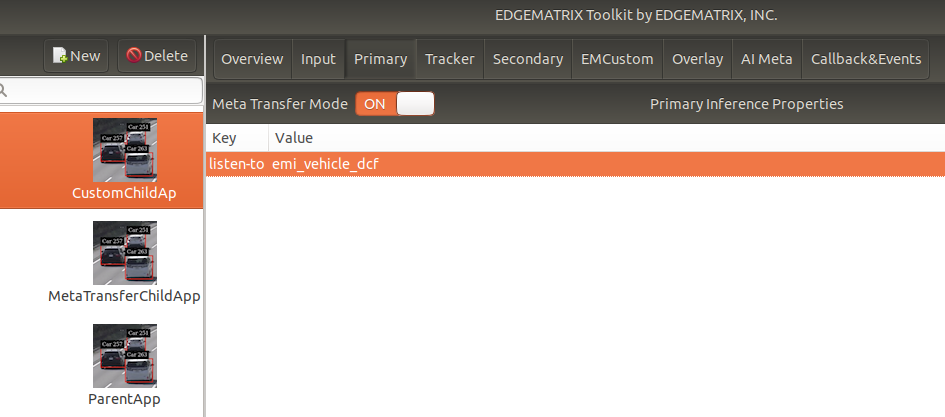
Then, setup the CustomChildApp as shown below. The stream config is from the doubleeap_emcustom stream. But note that the Launch Local RTSP Server is checked and the port is configured as 8555.
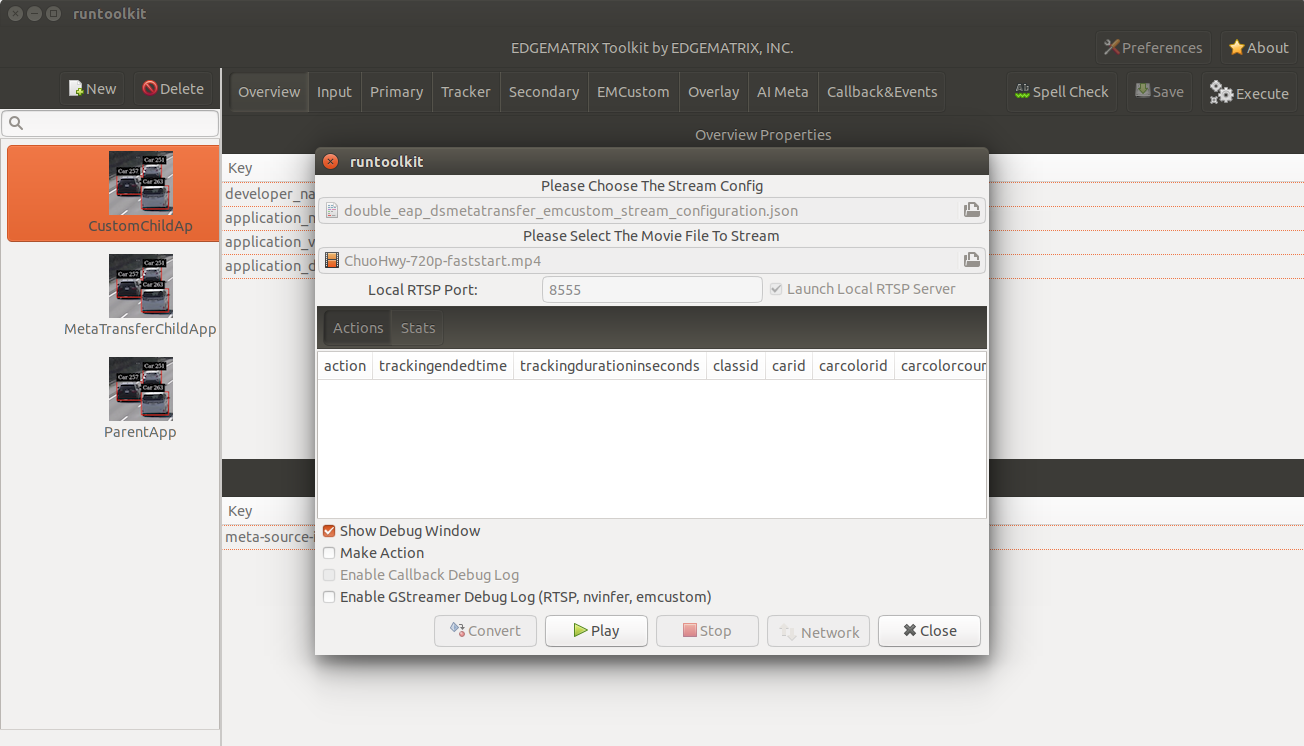
Also, edit the location of double_eap_dsmetatransfer_emcustom_stream_configuration.json so that it access to the port 8555 instead of 8554.
Now, it is time to start the ParentApp first. Then, after pressing the Start button, start the CustomChildApp.
You will see a desktop like this.
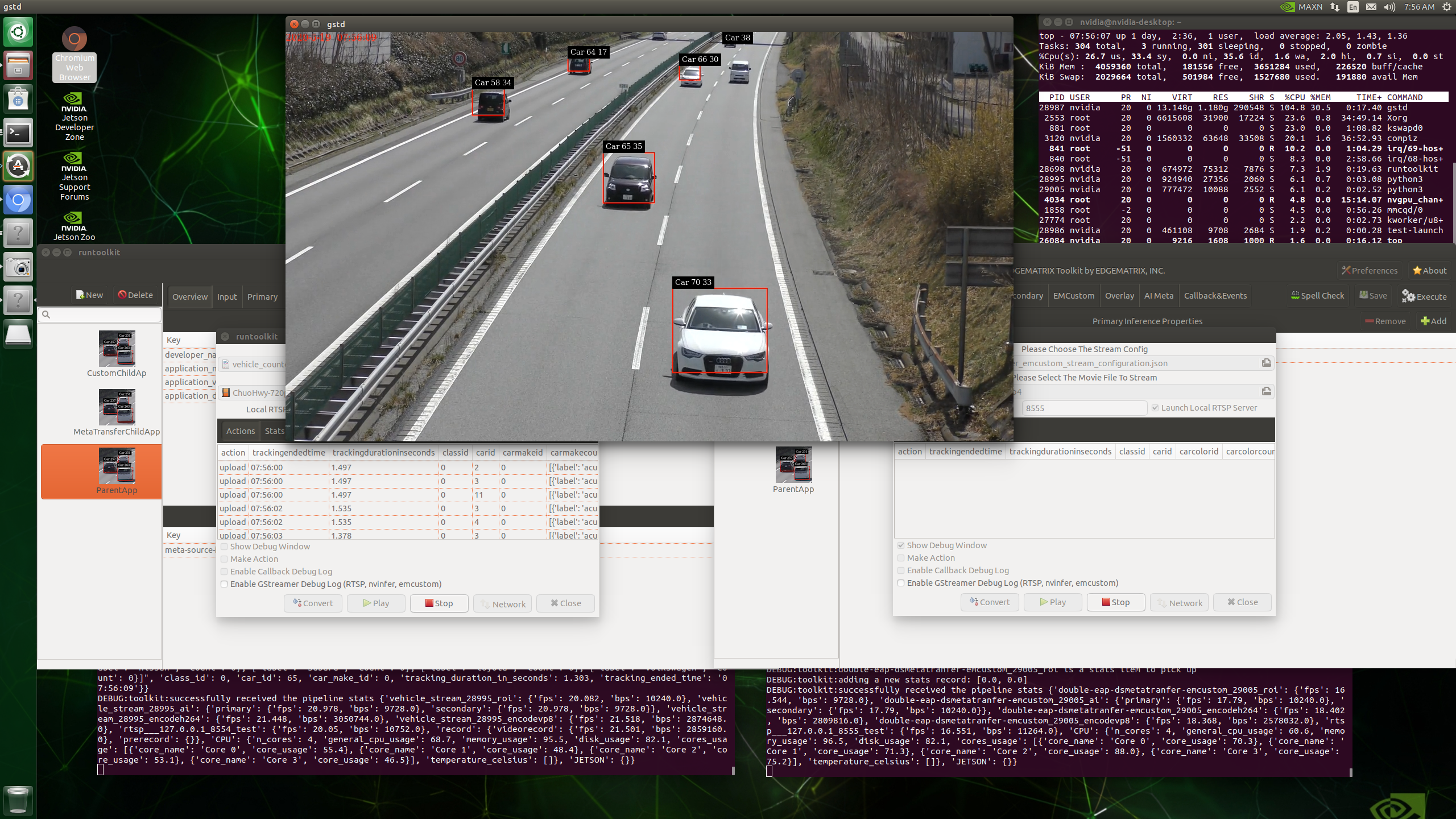
But, actually, you can not see the output of the emcustom element, which is the average intensity of each object. This will be achieved with another new feature that allows a developer to make drawing instructions in a callback.
Yet, you can still see a debug output from the emcustom element by enabling the Enable GStreamer Debug Log (RTSP, nvinfer, and emcustom) on the ParentApp. This will require too much resource for the debug output. So, whenever enabling this option, please disable Debug Window for both.